Hey folks, let’s cut to the chase. If you’re running a CNC milling shop, or even just testing out a new part before wasting a chunk of aluminum (or steel, or plastic) on a wrong cut, simulation software isn’t just a “nice-to-have”—it’s your cheapest insurance. I’m Jake, part of the team at [our company, no name drop, just the CNC milling machine supplier role], and over 12 years of selling mills, I’ve watched too many newbies skip simulation, only to slam a tool into a vise, mess up a $500 workpiece, or waste 8 hours on a fix. Today I’m breaking this down like we’re hanging out in my workshop, no stuffy jargon, just the steps that actually work. CNC Milling Machine
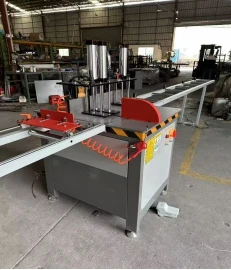
First off, let’s get the basics straight: what is CNC milling simulation, anyway? It’s not just a 3D video of your part being cut (though that’s part of it). It’s the software that pulls your G-code (the language your mill speaks) and your machine’s specs, then runs a virtual test cut before you turn on the real machine. Think of it as a test drive for your tools—no accidental crashes, no spoiled stock, no yelling at a screen when your first attempt goes south.
Now, let’s talk about picking the right simulation tool for a mill. A lot of guys I work with grab free stuff like Fusion 360’s built-in simulator, which is perfect for small shops or hobbyists just starting out. But if you’re running a high-production mill, you’ll want something more robust—like Mastercam’s Verify module or Siemens NX’s machining simulation. Here’s the pro tip I always pass on: match the simulation to your actual mill. Don’t use a simulation for a 3-axis small VMC to test your 5-axis large HMC cuts—you’ll get garbage results. I see so many folks mess this up, and then wonder why their virtual “no crash” turns into a real vise bender when they hit start.
Okay, let’s walk through the step-by-step, the exact way I teach my customers when they pick up a mill from us. No fancy steps, just what you do when you fire up the software post-CAM.
Step 1: Import your machine setup file first. This is non-negotiable. Almost every simulation lets you load a “machine definition file” (MDF) for your specific CNC mill. When we sell a mill, I always hand over a free custom MDF—no need to mess around building it from scratch. This file tells the software every tiny detail: how long your X, Y, Z axes are, where your tool changers sit, the size of your vise, even the maximum speed your spindle can hit. Skip this, and your simulation is just a pretty animation, not a real test. Last month, a customer of ours loaded a generic MDF for his 4-axis mill, and his virtual test didn’t catch that his rotary axis was 2mm too short—when he ran the real cut, he sliced the vise clean in half. Ouch.
Step 2: Drop in your workpiece and tooling. Next, pull the part you want to mill (your CAD model) into the simulator, and set the stock size exactly. Don’t just type in a rough number—measure your actual aluminum block or plastic sheet, then input it. For tooling, grab every tool you’re using: end mills, drills, face mills, even the center drill. Label them clearly, and make sure their tool diameters, lengths, and flute counts match exactly what you’re sticking in your mill’s tool holder. I once had a guy use a 1/4” end mill in his CAM, but grabbed a 5/16” one from the tool bin—his simulator didn’t flag it, so his real part had a wall 0.03” too thick. Wasted a whole week re-making the CAD. Moral of the story: match every tool spec, no shortcuts.
Step 3: Paste in your G-code. This is the actual instructions your mill will run. After you finish your CAM setup, you post-process it into G-code, then copy that into the simulator. Wait—hold up—don’t just paste any G-code. Make sure it’s post-processed for your specific machine. If your mill is a Haas, don’t use a post from a Fanuc. Most sims will give you a warning if the G-code doesn’t match the machine, but sometimes they don’t. I always tell customers to run a tiny test block first, like a 1” square cut, in simulation before running the whole part. That way you can spot a typo in the G-code, like a wrong axis direction, before you commit to a big workpiece.
Step 4: Run the simulation, and actually pay attention to the details. A lot of people just click “play” and zone out waiting for the animation to finish. That’s where you miss all the mistakes. Here’s what you need to check: first, no collisions. Look for where the tool might hit the vise, the machine frame, or the spindle. Most sims will highlight these in red, but sometimes small collisions (like a tool’s shank brushing the vise edge) slip through. Next, check the material removal—does your part look right? No overcuts, no undercuts, no walls that are too thin to hold up? I had a customer last year who’s sim looked perfect, but when he zoomed in, he saw the tool was digging 0.1” too deep into the fillet. The sim only showed the main part, not the tiny feature. Zoom in, use the measurement tools, don’t just watch the big animation. Also, check the speed and feed rates—make sure they’re within your mill’s limits. Running a 1/8” end mill at 10,000 RPM might sound fast, but if your mill only does 8,000, you’ll get a broken tool, not a good cut.
Step 5: Fix what’s wrong, then test again. If you see a collision, or an undercut, or a bad feed rate, go back to your CAM, adjust the tool path, re-post the G-code, and run the sim again. Do this until it’s perfect. I know it’s tempting to just skip to cutting, but 10 minutes of sim fixes will save you hours of rework and hundreds of dollars in material. Most of my repeat customers tell me this step cuts their part production time by 20% at least, and cuts scrapped parts by 90%. That’s huge, right?
Now, let’s talk about a few common mistakes I see all the time, because I’d rather save you from the headaches I’ve seen. First, not using 5-axis simulation if you have a 5-axis mill. A lot of guys with these fancy mills just use 3-axis sims, and get surprised when the rotary axis spins into the workholding. Second, ignoring coolant—wait, some sims let you add coolant lines! I know, it sounds silly, but coolant is super important for heat, and if your virtual coolant isn’t where it should be, your real tool might overheat and break mid-cut. Third, don’t use a simulation that’s too old. If your mill has a new control (like a Haas UMC-750 with the latest CNC), your old simulation file won’t have the latest features, so you’ll miss new tool path options that prevent crashes.
Here’s the other thing I love: simulation isn’t just for newbies. Even experienced machinists use it for complex jobs. Last month, a regular customer who runs a shop with 10 mills used simulation to test a 5-axis aerospace part. He said it caught a tool collision that he would have missed in 2D, and saved him $1,200 in material and a week of work. That’s the real value, not just for new guys, but for anyone pushing their mill to do hard jobs.
Now, if you’re thinking, “Okay, this sounds great, but my mill didn’t come with fancy simulation software,” that’s where I come in. We’re a CNC milling machine supplier, and we don’t just sell you a mill and ghost you. When you buy a mill from us, we include free, 1-year access to a top-tier simulation tool that’s pre-loaded with your mill’s exact machine file. We also do a free 1-hour walkthrough, so you don’t have to mess around with learning the software on your own. If you’re still just starting out, we can even point you to free, easy sims that work with our mills, no cost at all.
Wait, let’s make this clear: we’re not here to sell you something you don’t need. If you’re a hobbyist with a small mill cutting simple parts, the free sims are perfect. If you’re running a shop with multiple high-production mills, we can help you pick the right sim to match your workflow. The point is, simulation works, and it’s way easier than you think to use.
Before I wrap this up, let’s do a quick recap to make sure you don’t forget anything: 1) Get a machine-specific MDF for your mill, don’t use generic stuff. 2) Match every tool and workpiece spec exactly. 3) Use the correct G-code for your machine, post-processed right. 4) Watch for collisions, check material removal, and verify speeds/feeds. 5) Test again until it’s perfect. That’s it. No complicated steps, no jargon, just common sense that works.
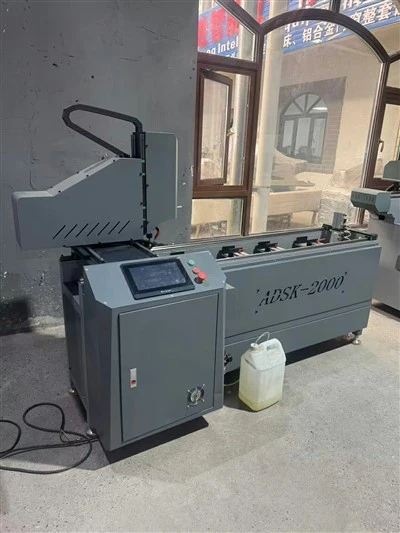
If you’re tired of scrapping parts, breaking tools, and wasting time fixing mistakes because you skipped simulation, let’s chat. We can talk about what mill fits your shop, what simulation setup works best for your jobs, and walk you through exactly how to use it so you’re not guessing. No hard sell, no fine print—just straight talk from a guy who’s been in this industry long enough to know what works.
Aluminum Profile Drilling Machine REFERENCES
- Mastercam Verify Module User Guide, 2023
- Fusion 360 CNC Simulation Help Center, Autodesk, 2024
- CNC Machining Simulation Best Practices, Modern Machine Shop, 2022
- Haas Automation Machine Definition File Library, 2023
- Siemens NX Machining Simulation Tutorial, Siemens Digital Industries Software, 2024
Kanghong Building Materials Technology Sdn. Bhd.
As one of the most professional CNC milling machine manufacturers and suppliers in China, we have world-leading production equipment and strong manufacturing capabilities. Please feel free to wholesale advanced CNC milling machine for sale here from our factory. Customized orders are welcome.
Address: No.601, Block 2, Xinlianchang Industrial Park, No.2 Taixing Second Road, Taiping South Industrial Zone, Dali Town, Nanhai District, Foshan City
E-mail: 631871392@qq.com
WebSite: https://www.kanghong-building.com/
